

Quick Start
Your SourceMedium dashboard is built in Looker Studio (formerly Google Data Studio). Here’s what you need to know to get started.Navigating the Dashboard
Use the page selector
Click the page dropdown (top left) or use the navigation menu to switch between report sections.
Apply date filters
Use the date range picker to adjust the reporting period. Most dashboards default to the last 30 days.
Use dimension filters
Filter by channel, product, region, or other dimensions using the dropdown controls.
Glossary
Understanding these key terms will help you navigate Looker Studio effectively.Report
Report
A Looker Studio asset that contains a collection of components (charts, tables, controls) to present insights from your data.Additional Documentation
Connector / Data Source
Connector / Data Source
Connectors connect Looker Studio to your underlying data. Connecting creates a data source in Looker Studio.Data sources represent a particular instance of a connector—for example, a connection to a specific BigQuery table, a Google Analytics property, or a Google Sheet. Data sources let you configure fields and options, and provide a secure way to share insights with viewers who may not have direct access to the underlying data.Additional Documentation
Component
Component
A widget you add to a report to display data: charts, tables, date range controls, filter controls, etc. Data components get their information from a data source.You can also add text, shapes, images, and embedded content.Additional Documentation
Field
Field
A column of data. Looker Studio uses two basic types:
- Dimensions — Categories or attributes you want to group by (e.g.,
sm_channel,product_title) - Metrics — Numbers that measure things (e.g.,
order_net_revenue,orders)
Credentials
Credentials
The mechanism determining who can see data in a data source. See Credential Modes below.Additional Documentation
View vs Edit Mode
View Mode (Default)
- Interact with filters and controls
- Hover over charts for details
- Cannot modify dashboard structure
Edit Mode
- Modify charts, add new visualizations
- Change data sources and calculations
- Requires Editor permission
Credential Modes Explained
Looker Studio dashboards can use two different credential modes for data access. Understanding this helps troubleshoot “no data” issues.Owner’s Credentials (Recommended)
- How it works: Dashboard uses the owner’s BigQuery permissions
- Viewers see: Data without needing their own BigQuery access
- Best for: Sharing dashboards broadly within your organization
Viewer’s Credentials
- How it works: Each viewer must have their own BigQuery access
- Viewers see: Only data they have permission to access
- Best for: Dashboards with sensitive data requiring row-level security
SourceMedium dashboards typically use Owner’s Credentials so your team can view data without individual BigQuery access.
SourceMedium Templates
If you’re on our Managed Data Warehouse solution, SourceMedium provides template reports and data sources:Creating & Managing Data Sources
Data sources connect your reports to data stored in BigQuery, Google Sheets, Google Analytics, etc.Creating a New Data Source
Prerequisite: You must be logged into a Google account with BigQuery access.Option 1: Create from your report (Edit mode)
Option 1: Create from your report (Edit mode)
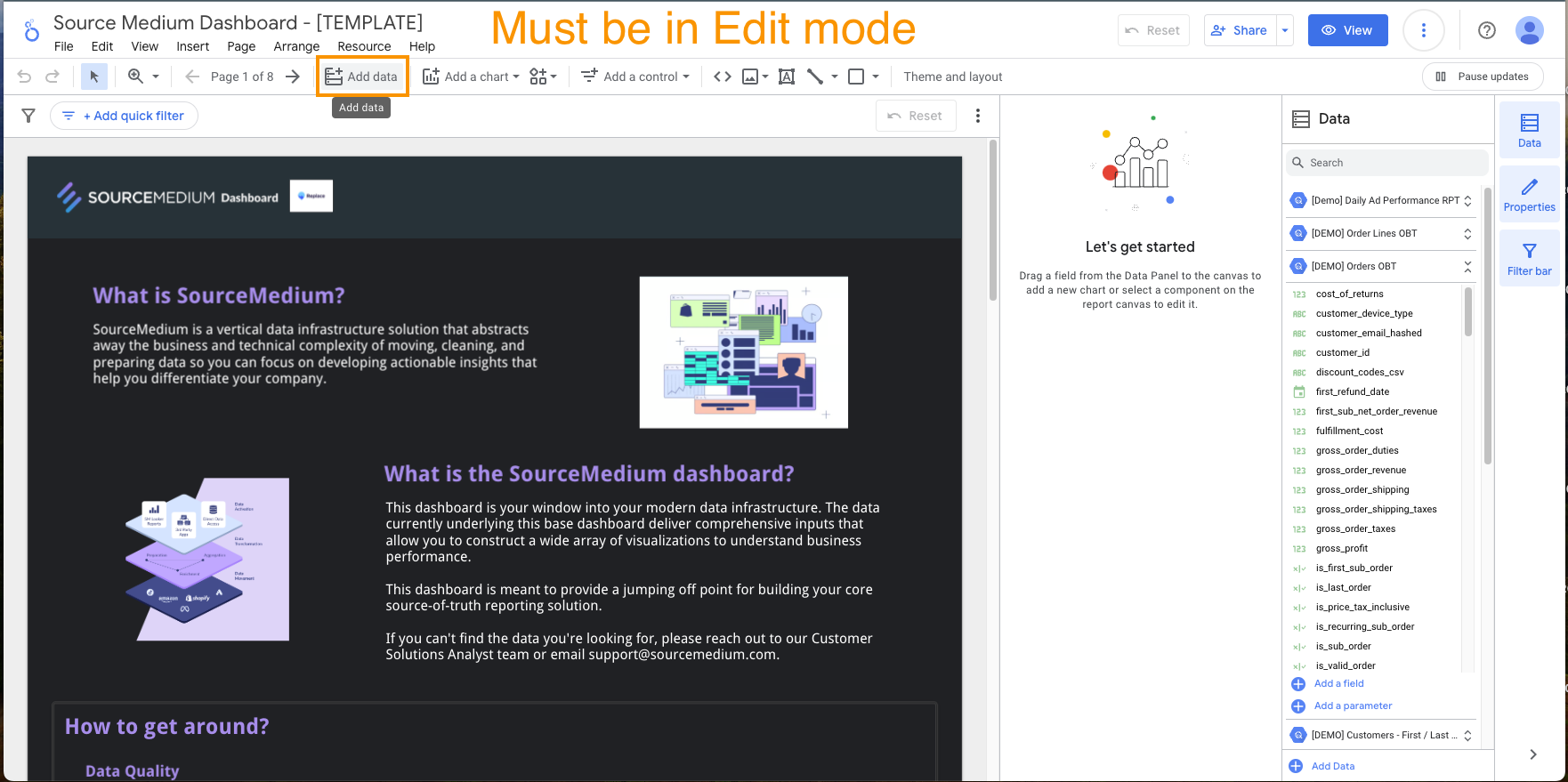
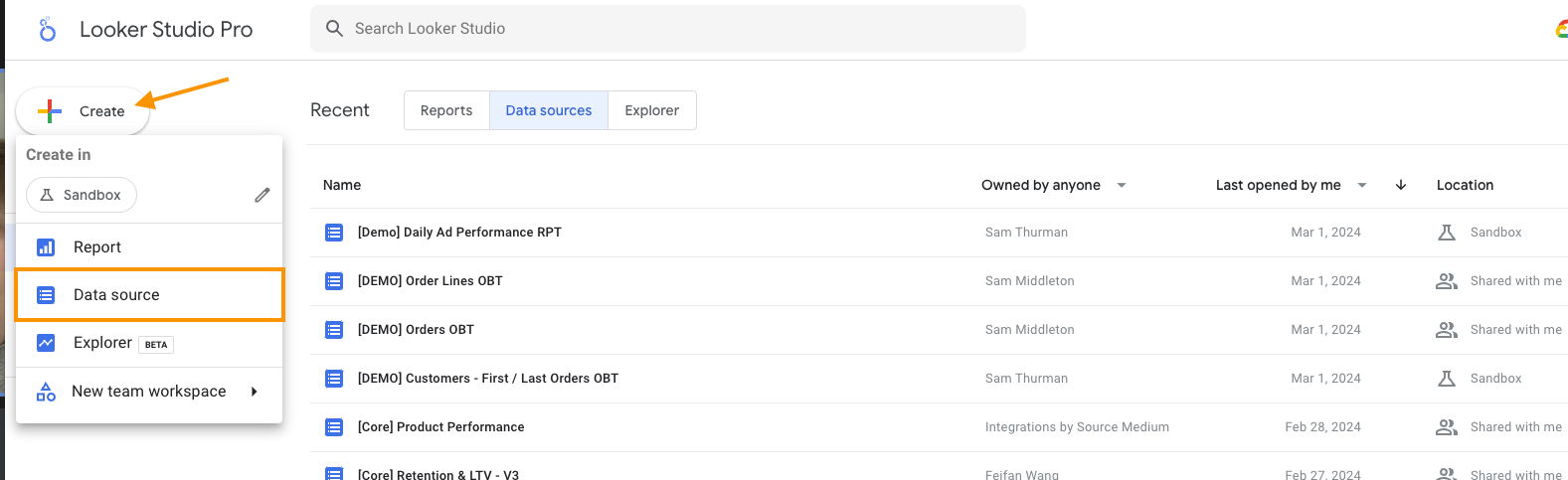
Option 2: Create from Looker Studio home page
Option 2: Create from Looker Studio home page
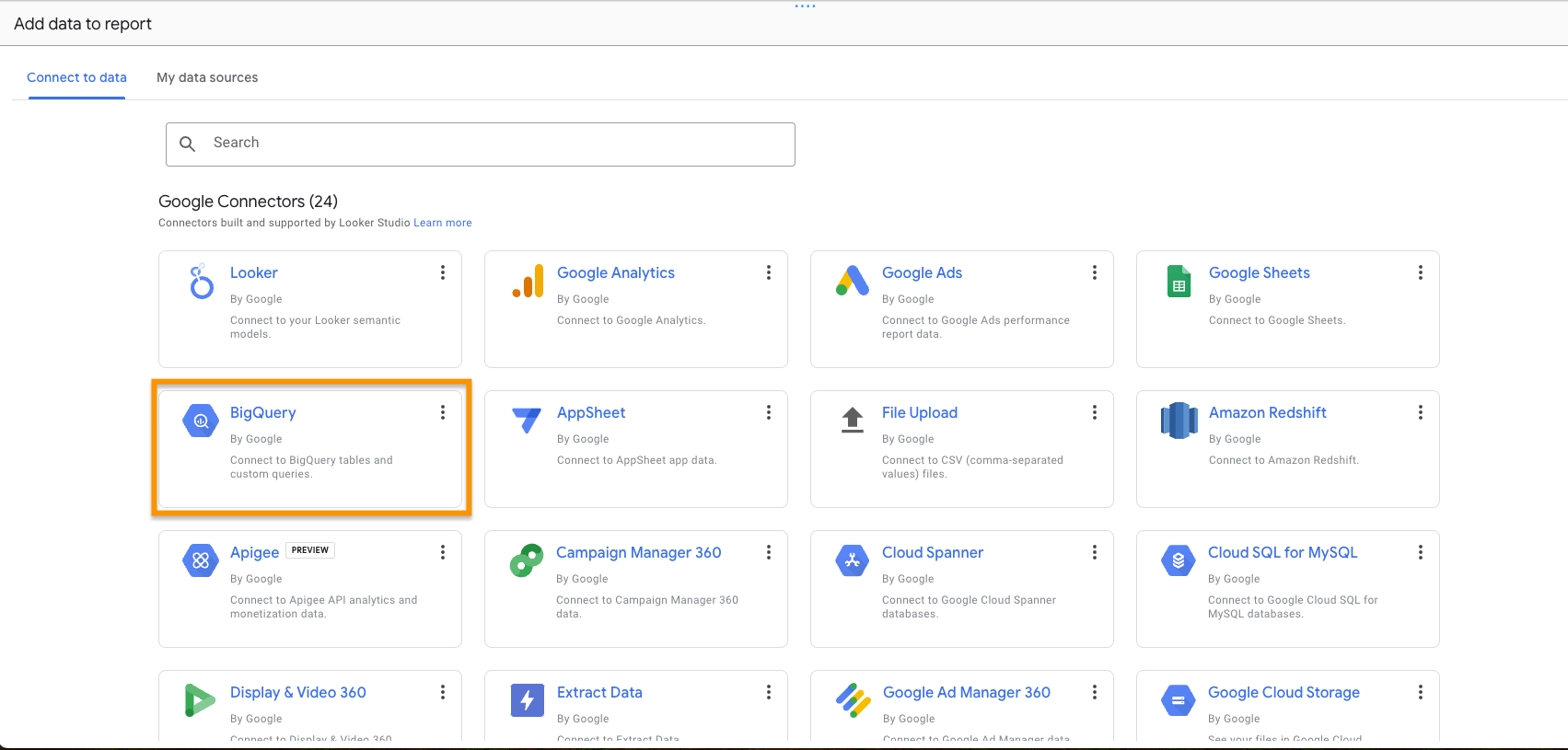
Choose your data
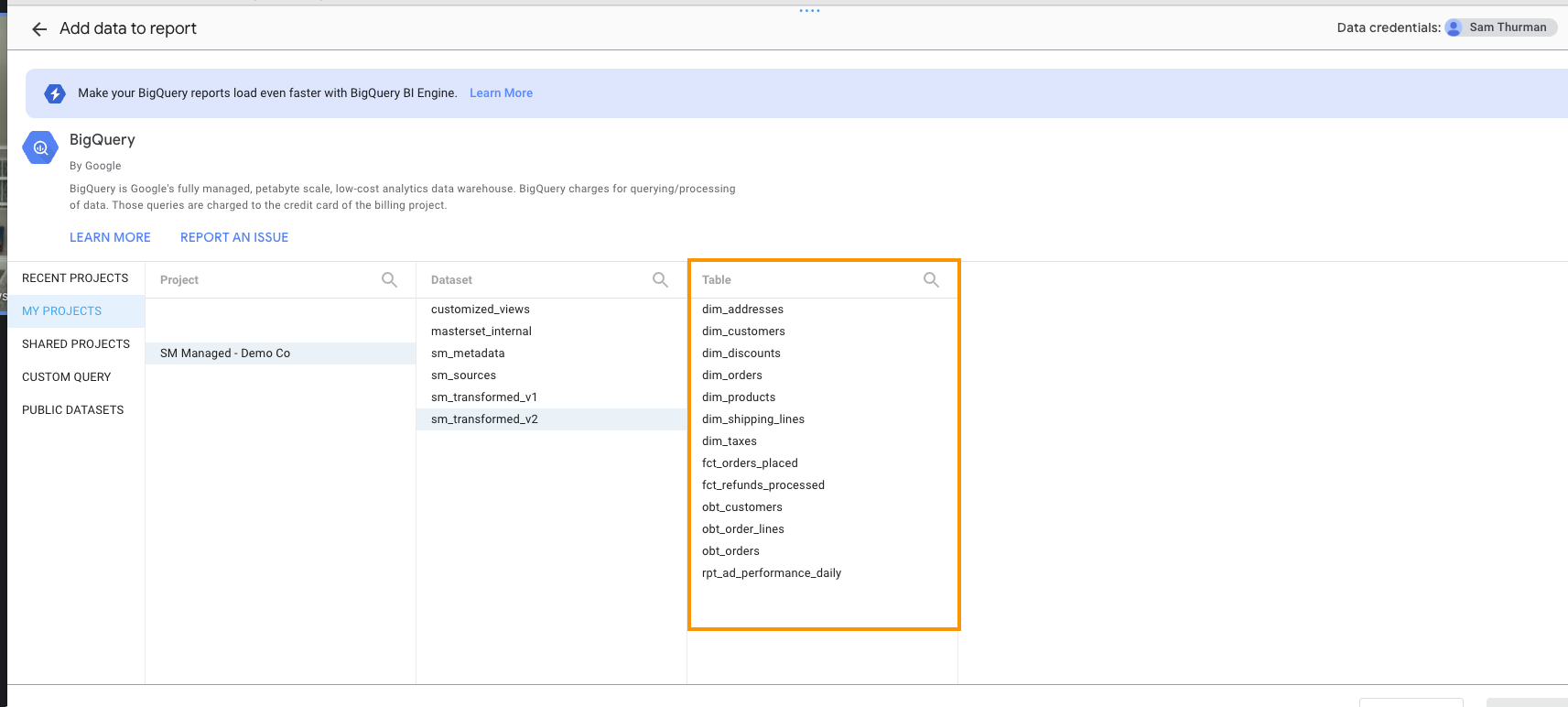
From an existing table:
- Under My Projects, select your SourceMedium warehouse
-
Select a Dataset (e.g.,
sm_transformed_v2) and Table (e.g.,obt_orders) -
Click Add
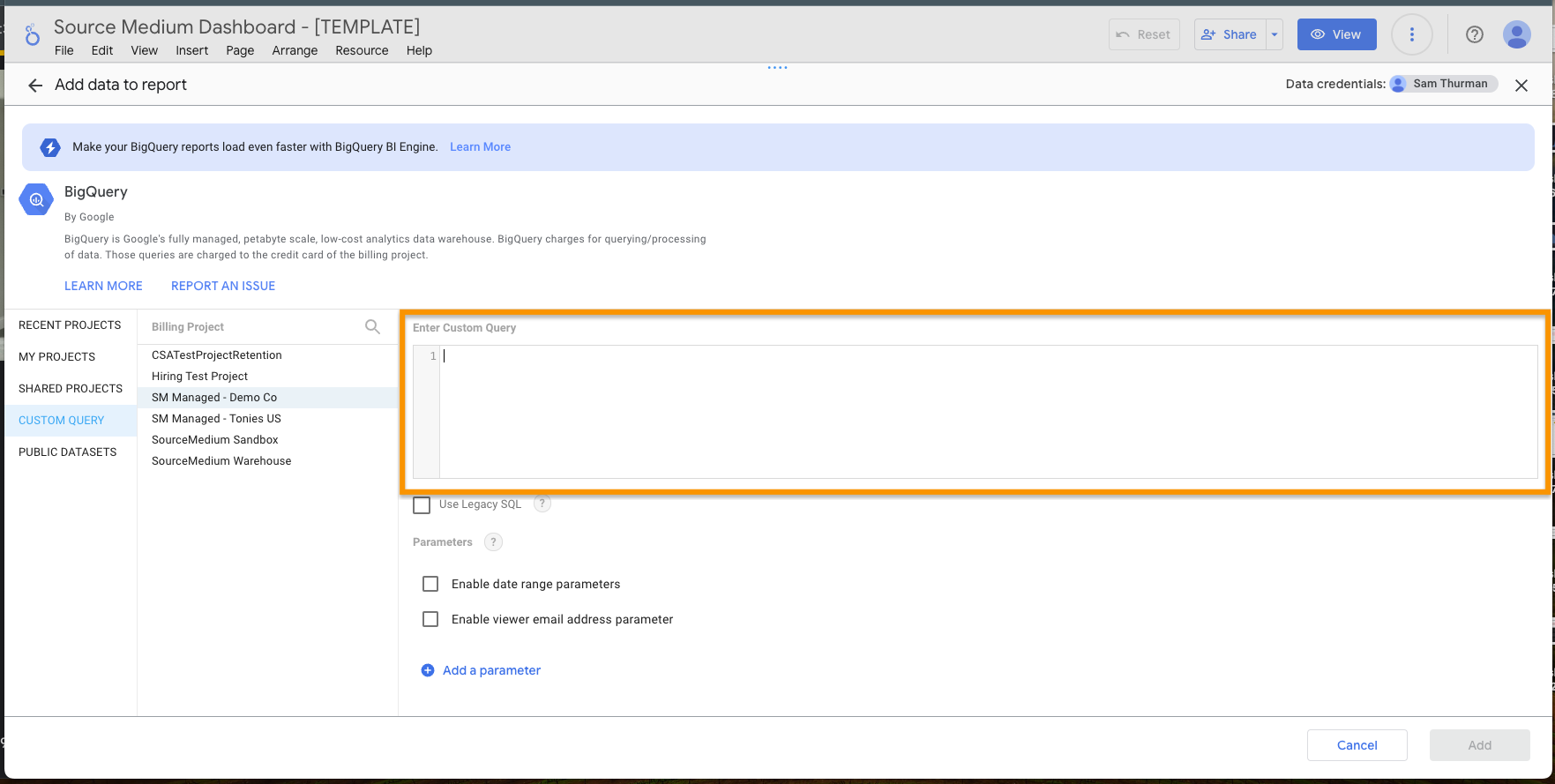
- Select Custom Query from the left menu
- Select your project
- Write your SQL query
-
Click Add
Data Source Best Practices
Naming conventions
Naming conventions
Name data sources to clearly indicate the underlying table:
- ✅
Orders OBT,[MyBrand] Orders,Ad Performance Daily - ❌
Data Source 1,Copy of Copy of Orders
Field naming and descriptions
Field naming and descriptions
BigQuery fields use
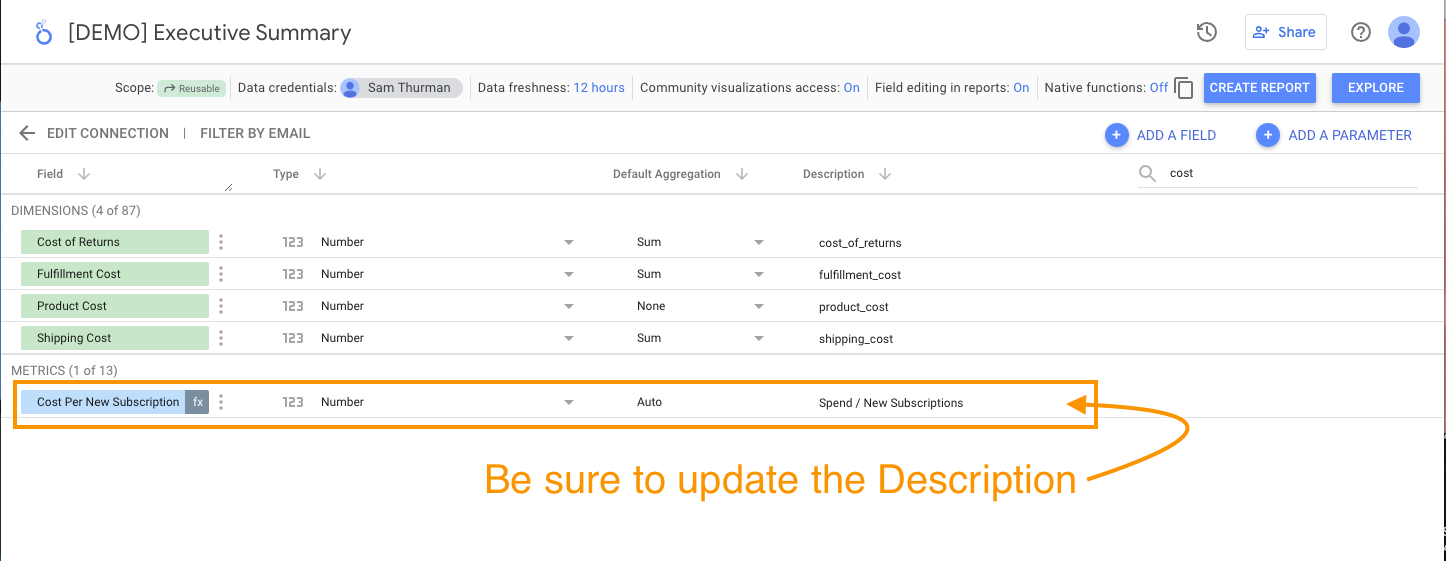
snake_case (e.g., order_net_revenue). You can rename fields for readability, but:- Copy the original field name into the Description field — this is your only reference for looking up definitions
- For calculated fields, include the formula in the Description
- Don’t edit Descriptions on SourceMedium template data sources
Service account credentials
Service account credentials
For production data sources, use a service account as the Data Credential:
- Ensures access survives when employees leave
- Centralizes permission management
- See service account setup for Looker Studio
Creating & Editing Reports
Creating a Report from Scratch
Start a new report
Go to lookerstudio.google.com, click + Create → Report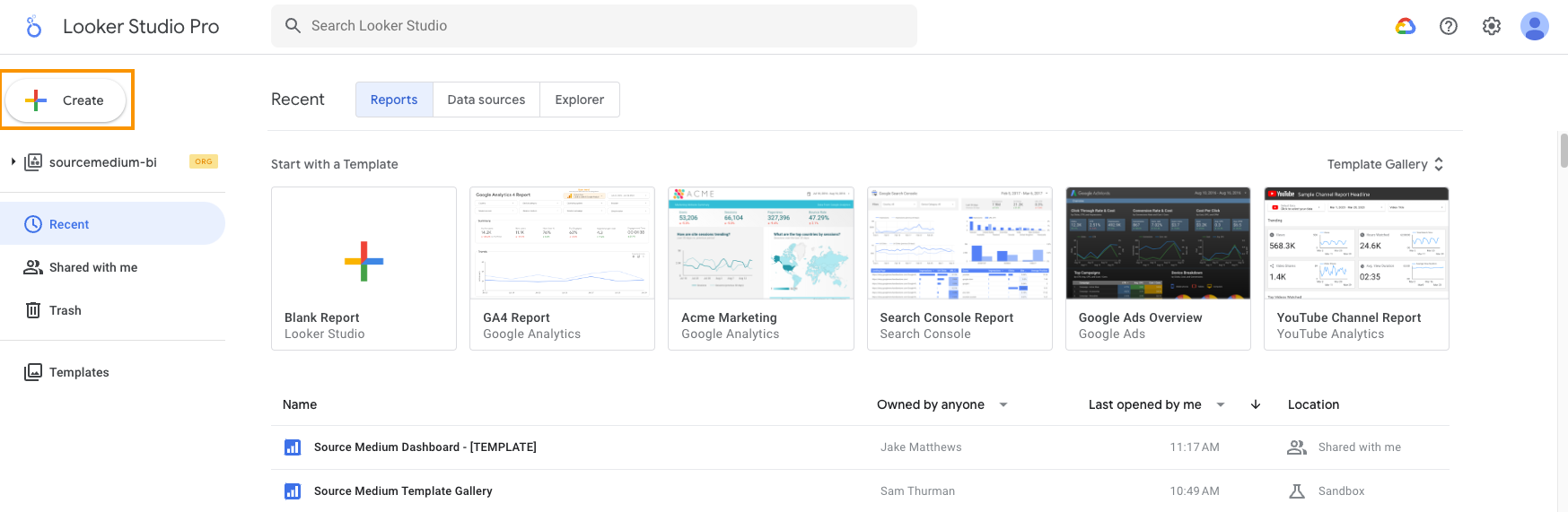
Add a data source
Select an existing data source from My data sources, or create a new one via BigQuery.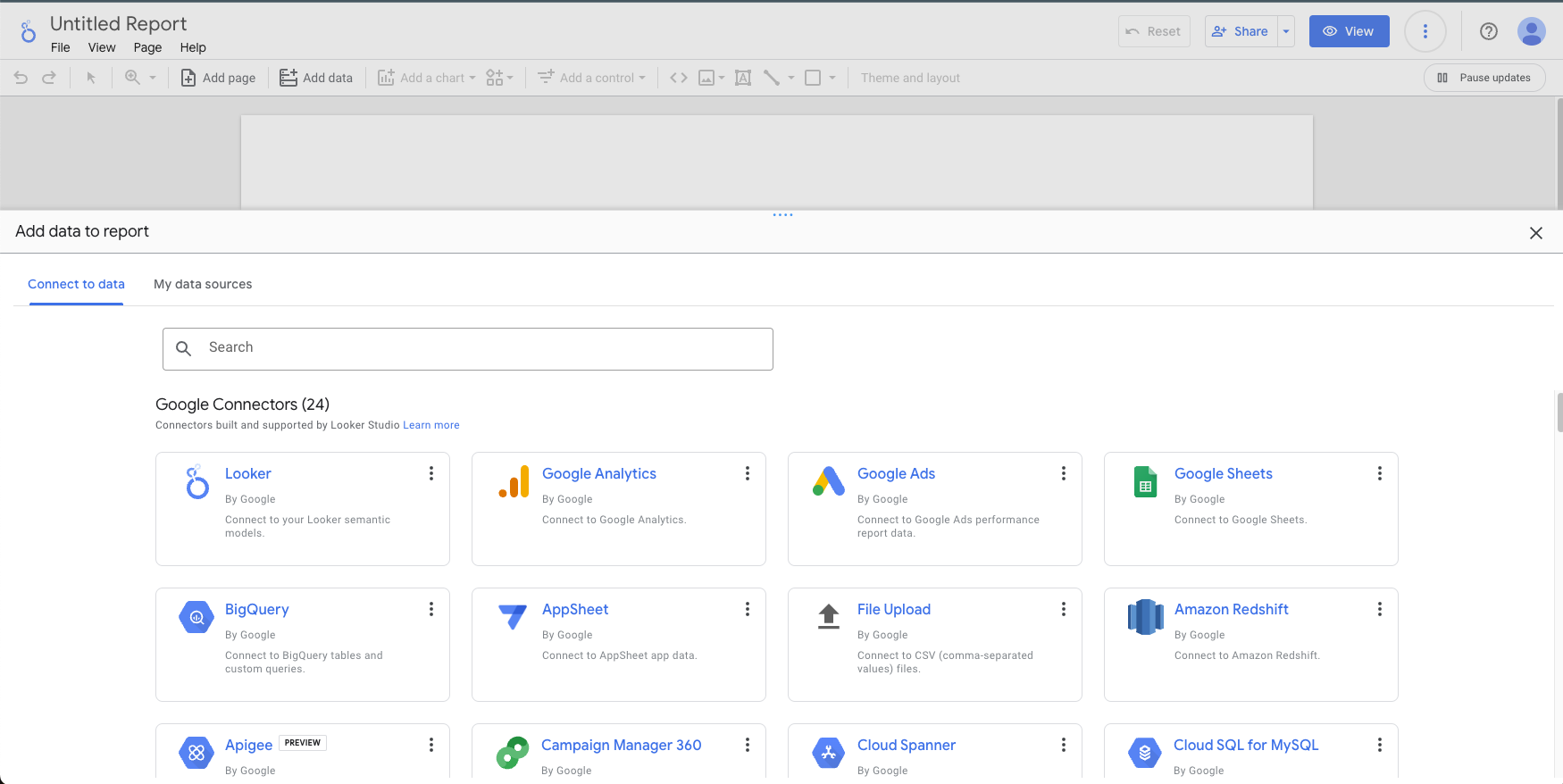
Adding Charts
- Click Add a chart in the toolbar and select a chart type
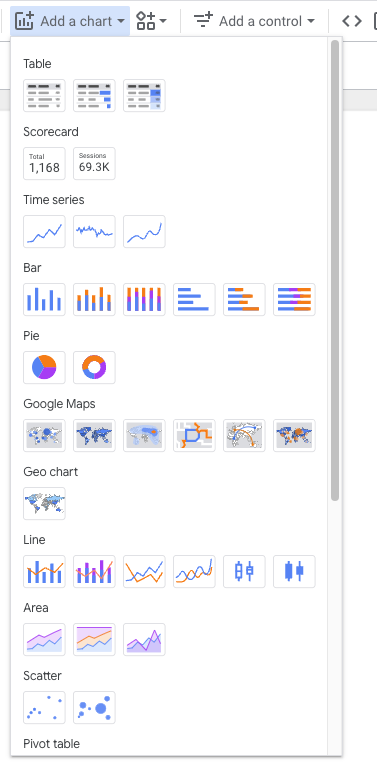
- Drag the chart to your desired location
- Configure dimensions and metrics in the Setup panel
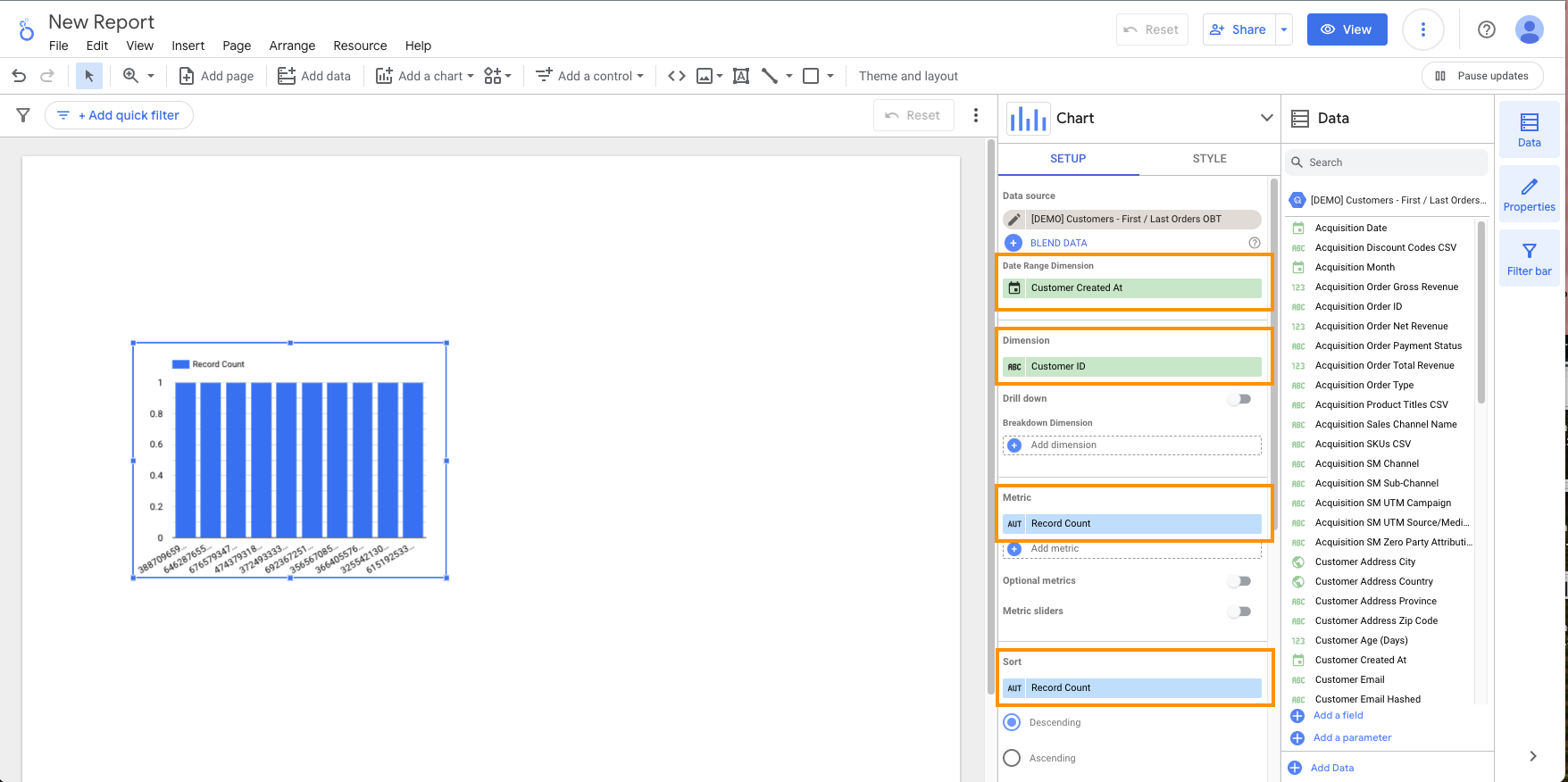
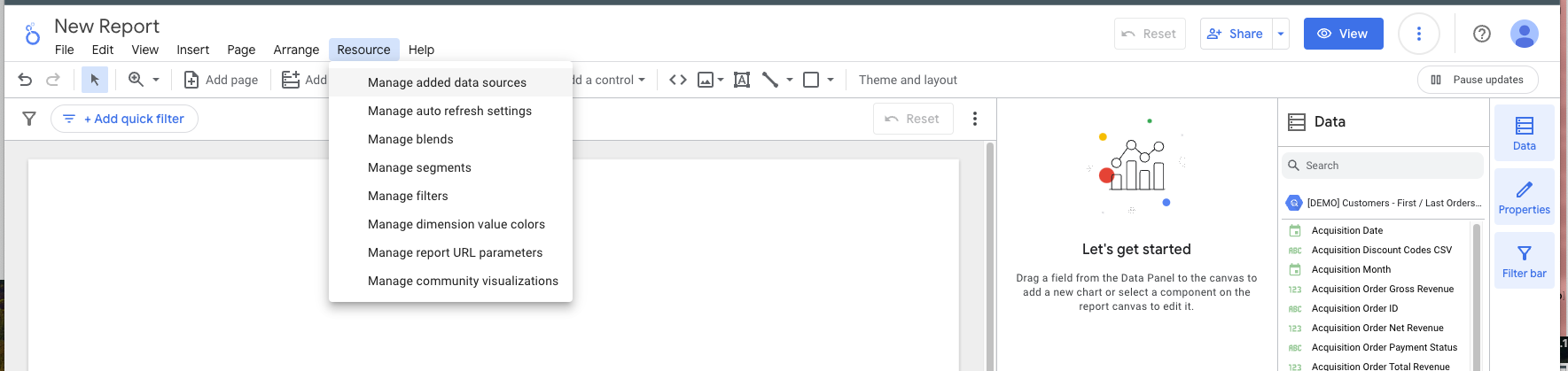
Adding Data Sources to an Existing Report
- Go to Resource → Manage added data sources
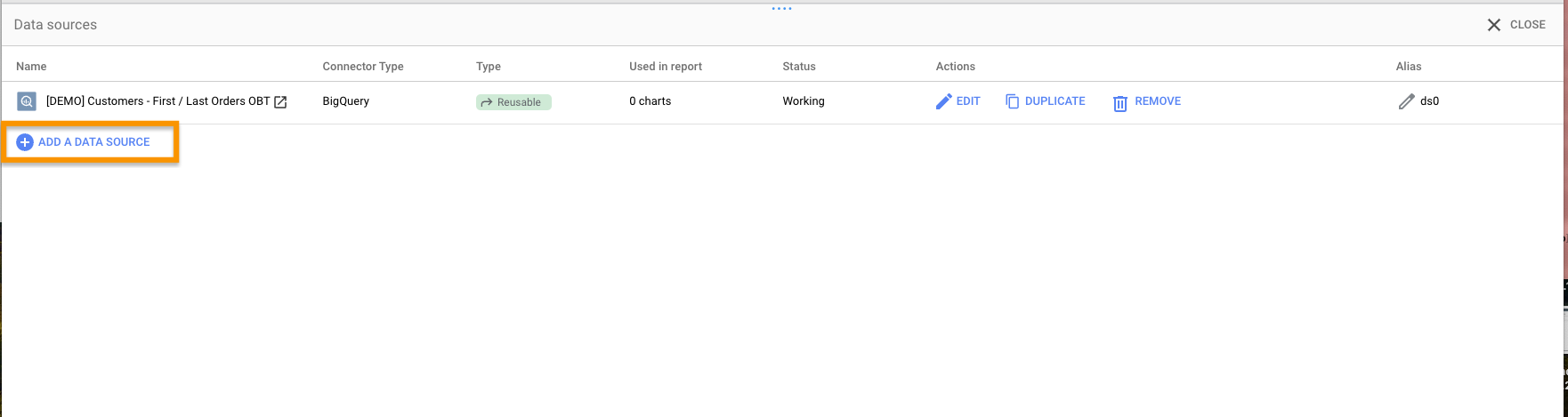
- Click Add a Data Source
- Select your connector and configure
Filtering Data
Filter Controls (Interactive)
Filter controls let report viewers filter data themselves using dropdowns, input boxes, etc.- By default, controls filter all components on the page
- You can group charts with filters for more targeted filtering
- Control types documentation
Object-Level Filters (Fixed)
Object-level filters are pre-set by editors and cannot be changed by viewers. They apply at the chart, page, or report level.- Use when all users should see the same filtered view
- Viewers cannot see, edit, or remove these filters
- Create and manage filters
Calculated Fields
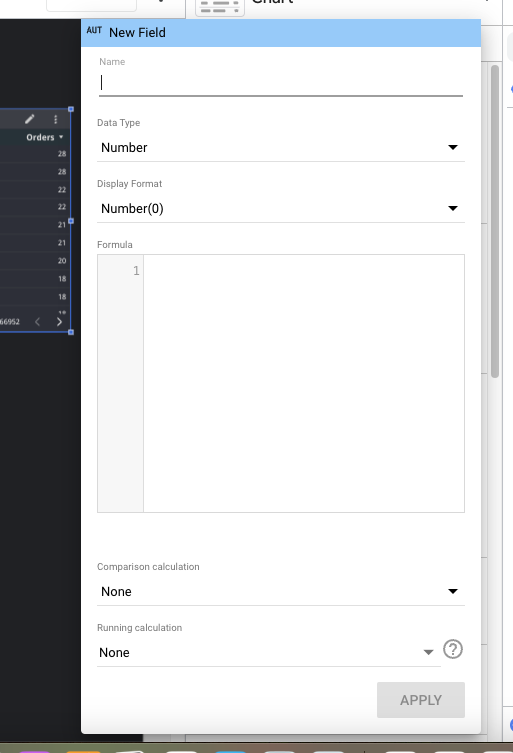
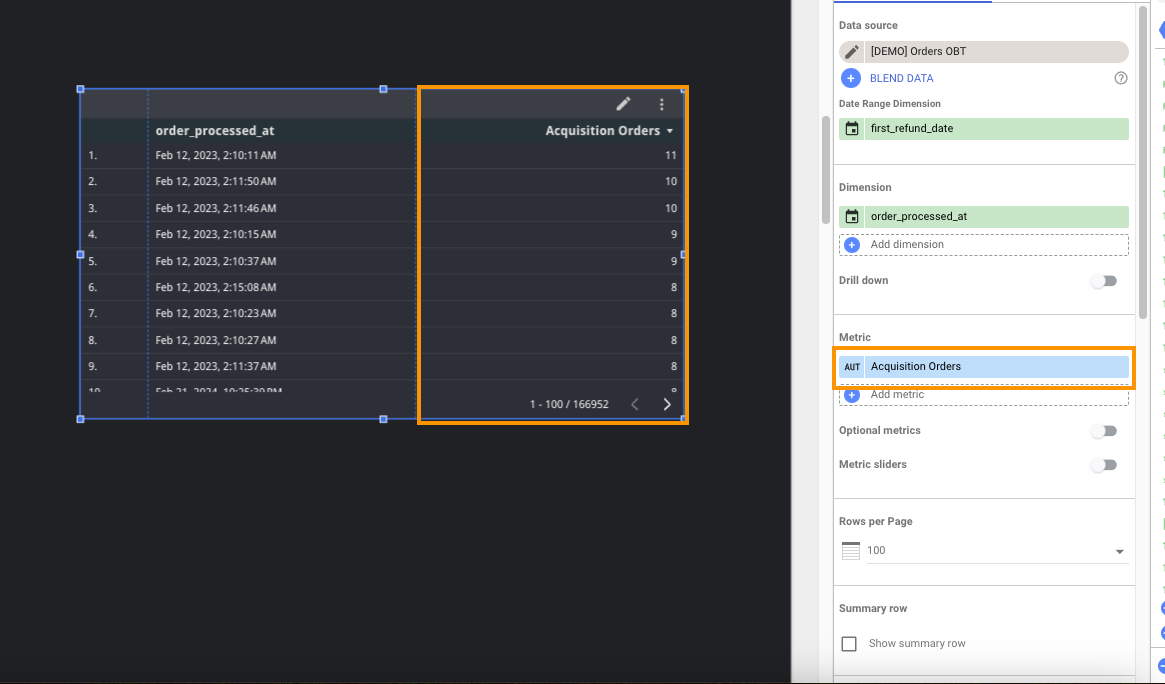
Create custom metrics and dimensions without writing SQL in your warehouse.Chart-Level Calculated Fields
Quick fields created within a single chart—not reusable elsewhere.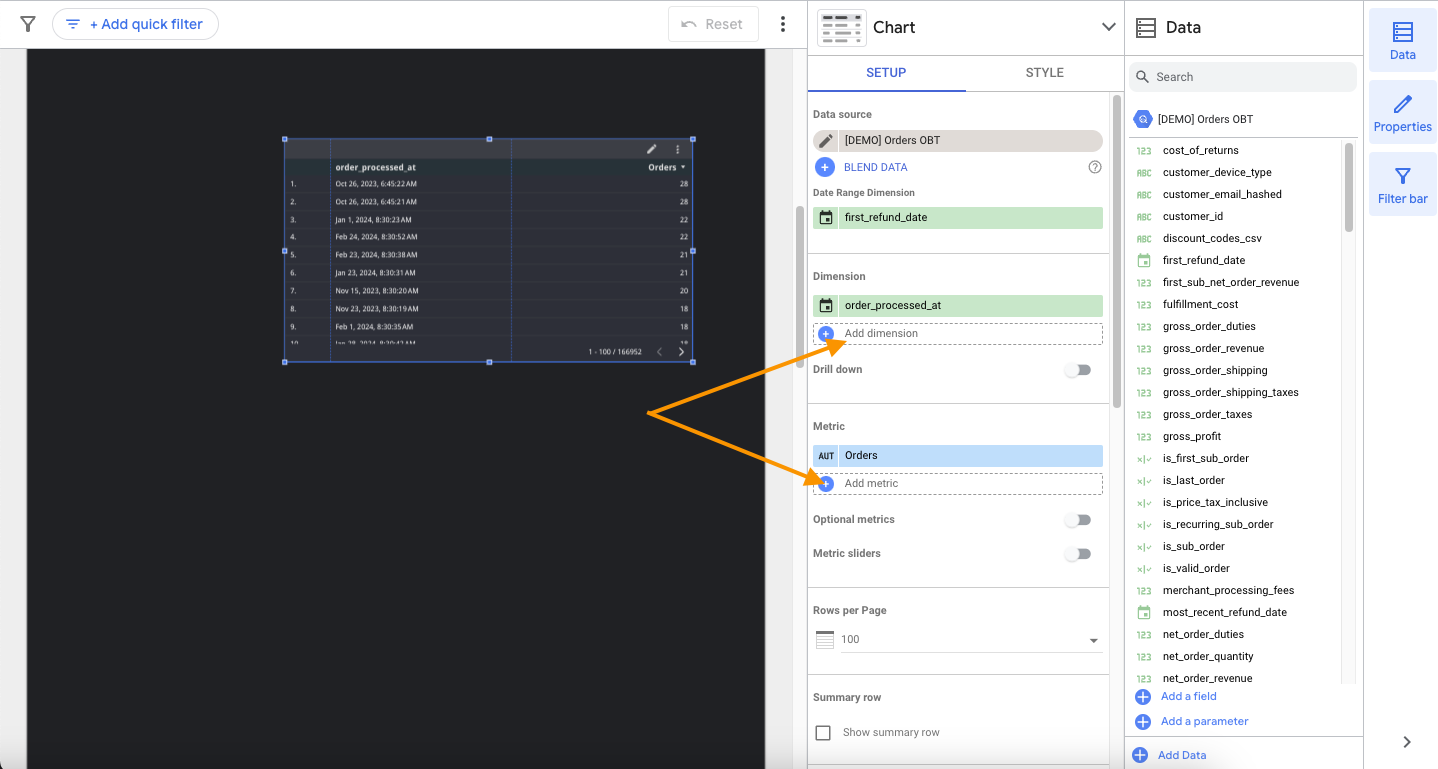
Data Source-Level Calculated Fields
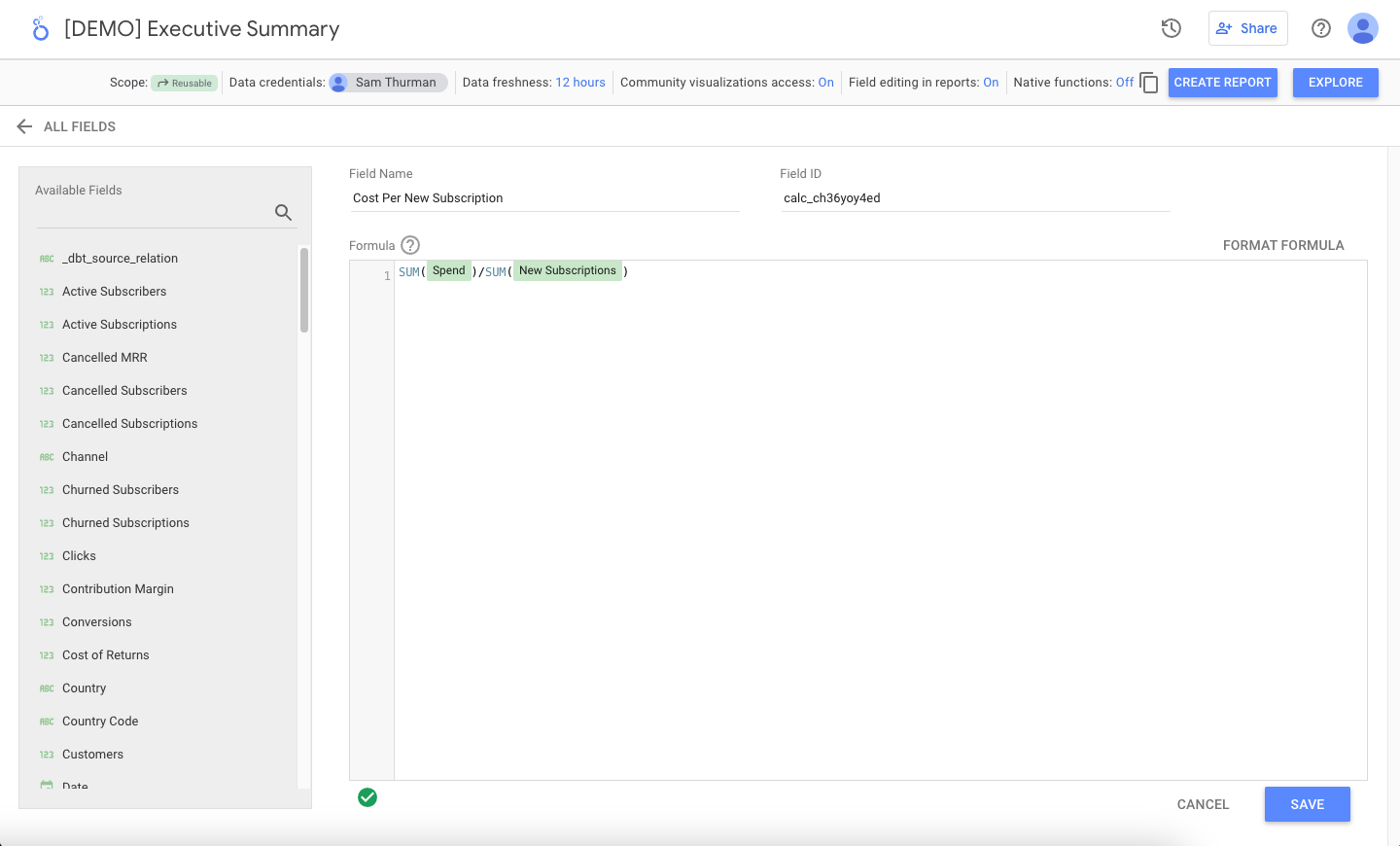
Reusable fields available in any report using that data source. Requires data source Edit access.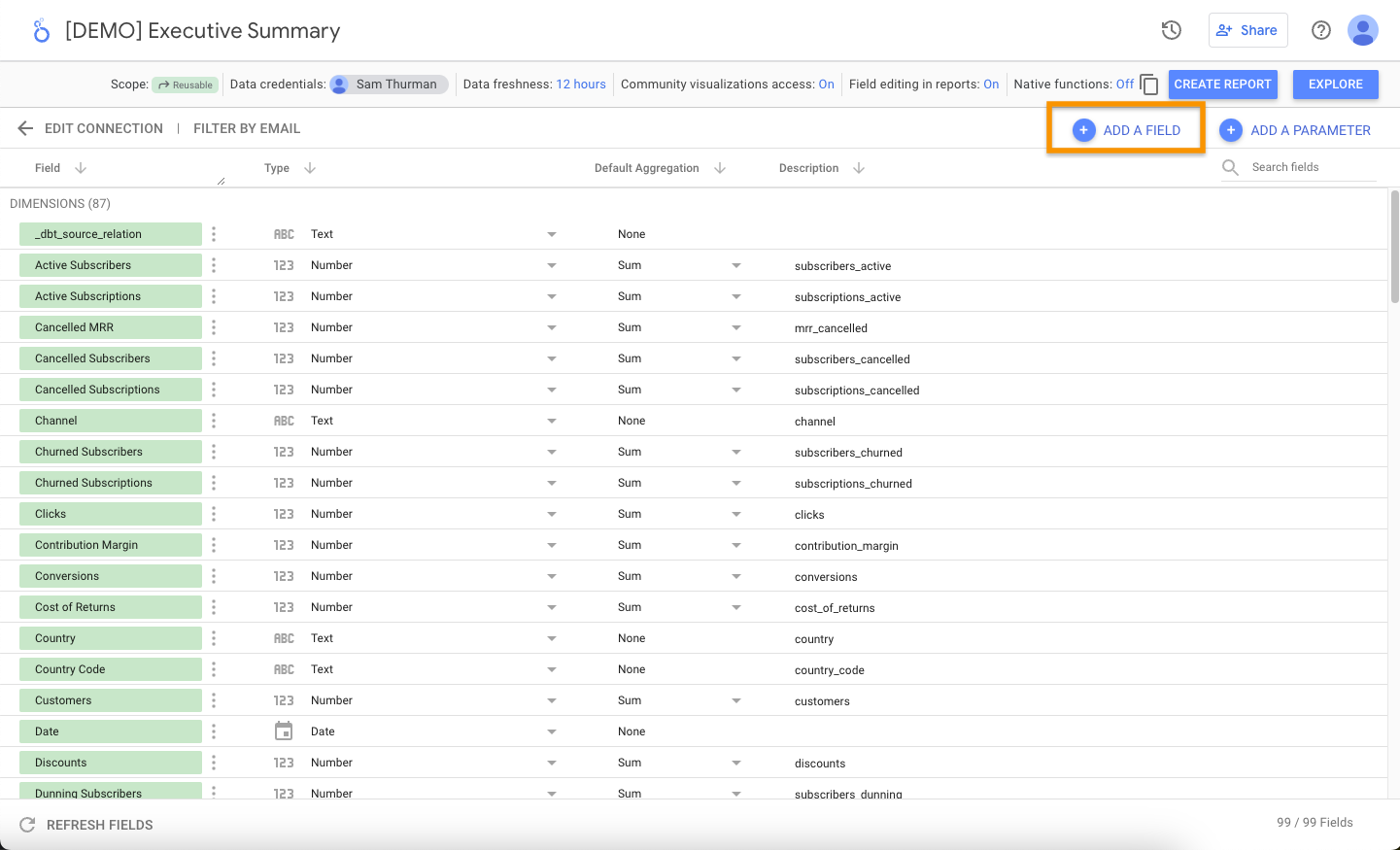
Common Formulas
Average Order Value (AOV)Sharing Your Dashboard
Permission Levels
| Level | View | Interact | Edit | Share | Delete |
|---|---|---|---|---|---|
| Viewer | ✅ | ✅ | ❌ | ❌ | ❌ |
| Editor | ✅ | ✅ | ✅ | ✅ | ❌ |
| Owner | ✅ | ✅ | ✅ | ✅ | ✅ |
Sharing a Report
- Click Share (top right)
- Enter email addresses or Google Group emails
- Choose permission level
Sharing a Data Source
Data source access is separate from report access:- Viewer: Can see field names and descriptions
- Editor: Can rename fields, edit calculated fields, change the connection
- Owner: Can delete the data source, change ownership
Data source access ≠ data credentials. Access controls who can modify the data source configuration; credentials control who can see the underlying data.
Using Google Groups
For teams with 5+ users, manage access via Google Groups:| Group | Purpose |
|---|---|
company-sm-admins | Full access to reports and data sources |
company-sm-editors | Report editors, data source viewers |
company-sm-viewers | Report viewers only |
Troubleshooting
Dashboard shows 'No data'
Dashboard shows 'No data'
Check these in order:
- Date range filter — is it set to a period with data?
- Other filters — are they excluding all data?
- Data source credentials — do they have BigQuery access?
- Contact SourceMedium support if issues persist
Charts are slow to load
Charts are slow to load
Large date ranges or complex calculations slow performance. Try:
- Reducing the date range
- Using pre-aggregated metrics when available
- Removing unnecessary charts from the page
Can't enter Edit mode
Can't enter Edit mode
You need Editor permission. Contact the dashboard owner or admin.
Changes aren't saving
Changes aren't saving
- Ensure you have Editor permission
- Check your internet connection
- Try refreshing and re-entering Edit mode
Filter not affecting all charts
Filter not affecting all charts
In Edit mode:
- Click the filter control
- Check Properties → Filter applied to
- Ensure relevant charts are selected
'You don't have access' on data source
'You don't have access' on data source
- Verify you have data source Viewer or Editor access
- Check the data credentials match your BigQuery permissions
- Permission changes can take time to propagate—sign out and back in
Keyboard Shortcuts
| Action | Shortcut |
|---|---|
| Undo | Ctrl/Cmd + Z |
| Redo | Ctrl/Cmd + Y |
| Copy | Ctrl/Cmd + C |
| Paste | Ctrl/Cmd + V |
| Select All | Ctrl/Cmd + A |
| Group | Ctrl/Cmd + G |
Additional Resources
Google Documentation:- Looker Studio Help Center
- Calculated Field Functions
- Chart Types Reference
- Using the Properties Panel