

Introduction
Whether you’re a brand marketing team or an agency servicing many brands, managing user access is a critical part of harnessing SourceMedium’s data infrastructure and reporting. Industry best practices dictate that access should be given only as needed to achieve stalwart data security and reliable stability of custom analytics, tables, views, and pipelines built upon SourceMedium’s infrastructure. Find out how to protect the security of your data and the reliability of custom tools you build on SourceMedium using the information below.Basic Access Types
Looker Studio - View
Looker Studio - View
Responsibility Rating: Low
Description:
Looker Studio View permissions allow users to look, but not touch. They will be able to see all analytics present on your dashboard, but they won’t be able to edit charts or view any underlying data, though they can still operate filters. This is the safest permission to grant, suitable for anyone who can be trusted to look at your data.How to Set this Permission:
Set this permission on your SourceMedium Dashboard, which is always accessed from the link provided during your onboarding and pinned to your shared slack channel, should you choose to have one, otherwise provided by email. Use the Share button at the top right to add users by email as shown in the gif below.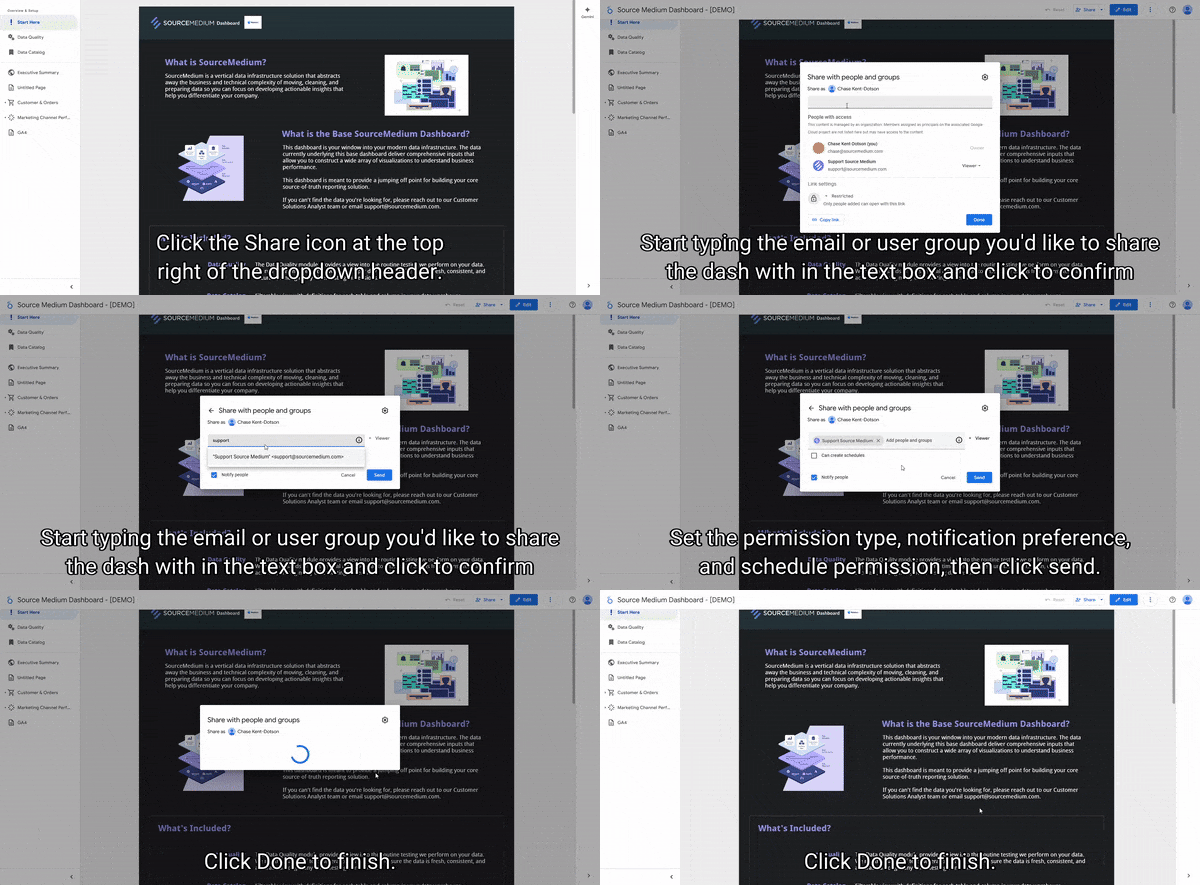
Looker Studio Permissions from Google
Description:
Looker Studio View permissions allow users to look, but not touch. They will be able to see all analytics present on your dashboard, but they won’t be able to edit charts or view any underlying data, though they can still operate filters. This is the safest permission to grant, suitable for anyone who can be trusted to look at your data.How to Set this Permission:
Set this permission on your SourceMedium Dashboard, which is always accessed from the link provided during your onboarding and pinned to your shared slack channel, should you choose to have one, otherwise provided by email. Use the Share button at the top right to add users by email as shown in the gif below.
Looker Studio Permissions from Google
Looker Studio - Edit Dashboards
Looker Studio - Edit Dashboards
Responsibility Rating: Moderate
Description:
Looker Studio Edit permissions for dashboards allow users to create custom charts, swap or create metrics, and manage layouts. This permission does not allow for editing of the underlying data or the creation of custom fields at the data source level.How to Set this Permission:
Set this permission on your SourceMedium Dashboard, which is always accessed from the link provided during your onboarding and pinned to your shared slack channel, should you choose to have one, otherwise provided by email. Use the Share button at the top right to add users by email as shown in the gif below.
Looker Studio Permissions from Google
Description:
Looker Studio Edit permissions for dashboards allow users to create custom charts, swap or create metrics, and manage layouts. This permission does not allow for editing of the underlying data or the creation of custom fields at the data source level.How to Set this Permission:
Set this permission on your SourceMedium Dashboard, which is always accessed from the link provided during your onboarding and pinned to your shared slack channel, should you choose to have one, otherwise provided by email. Use the Share button at the top right to add users by email as shown in the gif below.
Looker Studio Permissions from Google
Looker Studio - Edit Data Sources
Looker Studio - Edit Data Sources
Responsibility Rating: High
Description:
Looker Studio data source editing permissions allow users to view, edit the connection of, and create custom data source level metrics in data sources associated with Looker Studio dashboards.How to Set this Permission:
This permission is set in multiple places. First, it is set on each data source in Looker Studio at the top of the edit screen with the heading “Data credentials.” For embedded data sources, the “Owner’s Credentials” option from this menu will allow anyone with edit access to the report to edit the data source. For reusable data sources, and when the data credentials are set to “Viewer’s Credentials,” the user must have edit access to the data source on its original platform, e.g BigQuery, Google Analytics, in order to edit the data source.![]() Relevant Links:
Relevant Links:
Editing Data Sources from Google
Description:
Looker Studio data source editing permissions allow users to view, edit the connection of, and create custom data source level metrics in data sources associated with Looker Studio dashboards.How to Set this Permission:
This permission is set in multiple places. First, it is set on each data source in Looker Studio at the top of the edit screen with the heading “Data credentials.” For embedded data sources, the “Owner’s Credentials” option from this menu will allow anyone with edit access to the report to edit the data source. For reusable data sources, and when the data credentials are set to “Viewer’s Credentials,” the user must have edit access to the data source on its original platform, e.g BigQuery, Google Analytics, in order to edit the data source.
Editing Data Sources from Google
BigQuery - View Tables
BigQuery - View Tables
Responsibility Rating: Moderate
- Brief explanation of what the permission means/is capable of
- How to set the permission, including a screenshot
- Link to the relevant permission doc on google (Looker Studio, BigQuery, and/or Google groups)
BigQuery - Edit Tables
BigQuery - Edit Tables
Responsibility Rating: Very High
- Brief explanation of what the permission means/is capable of
- How to set the permission, including a screenshot
- Link to the relevant permission doc on google (Looker Studio, BigQuery, and/or Google groups)
SourceMedium Recommended Access Group Setup
Basic User Group
- Permissions:
Looker Studio - View
BigQuery - None - Who this is for: Marketing team, Analysts, Client Team Members for Marketing Agencies—anyone who needs access to the data but doesn’t want to overcomplicate the process with editing
Intermediate User Group
- Permissions:
Looker Studio - Edit Dashboards
BigQuery - None - Who this is for: Analysts, Data Team Members, and any tech savvy employees that not only need data access, but need to create custom visualizations, use templates, and copy dashboards to answer their analytical questions on the fly
Advanced User Group
- Permissions:
Looker Studio - Edit Dashboards & Data Sources
BigQuery - View Tables - Who this is for: Deep Analysts, Data Team Members, and the most tech knowledgeable employees looking to answer the most complex analytical questions using the full power of Looker Studio and understanding the underlying data by observing BigQuery data frameworks
Warehouse User Group
- Permissions:
Looker Studio - Edit Dashboards & Data Sources
BigQuery - Edit Tables - Who this is for: Data Engineers, Data Team Managers, and data employees who need to create and edit tables in the warehouse