

Why Google Groups?
Google Groups acts as an identity primitive across Google’s ecosystem. One group email grants access to:- Looker Studio dashboards (viewer or editor)
- BigQuery datasets (query access)
- Google Sheets (config sheets, exports)
One group email = unified access control. Add a teammate to the group once, and they automatically get access to all shared resources.
Quick Start: Create a Group
Go to Google Groups
Navigate to groups.google.com and sign in with your organization account.
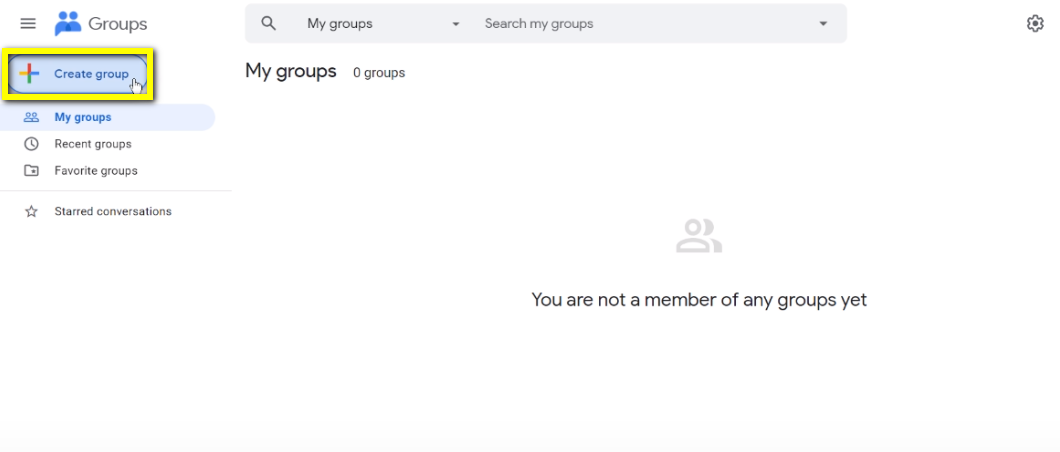
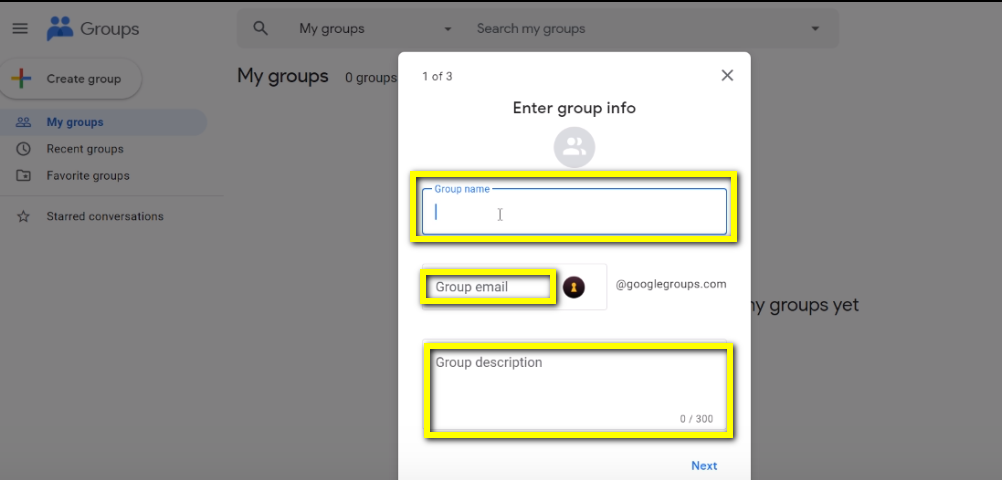
Configure group details
- Group name: Descriptive name (e.g., “Acme Analytics Team”)
-
Group email:
[email protected] -
Description: Who should be in this group and what they access
Set privacy settings
Choose who can find and join the group. For internal teams, “Only invited users” is recommended.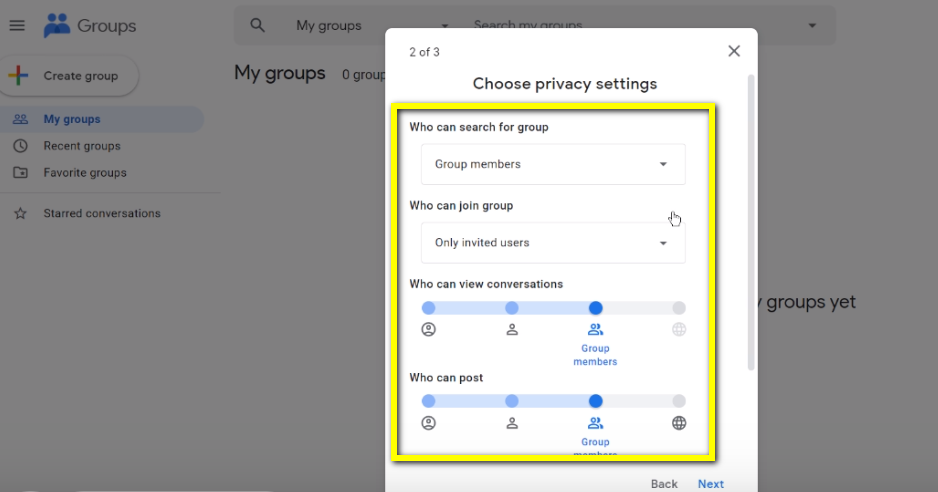
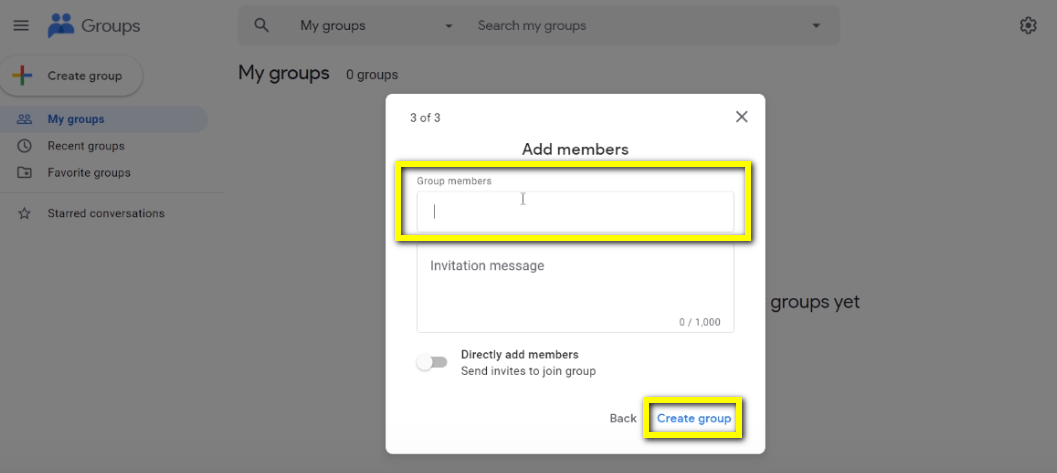
Managing Group Members
Add members
Click Add Members at the top of your group page.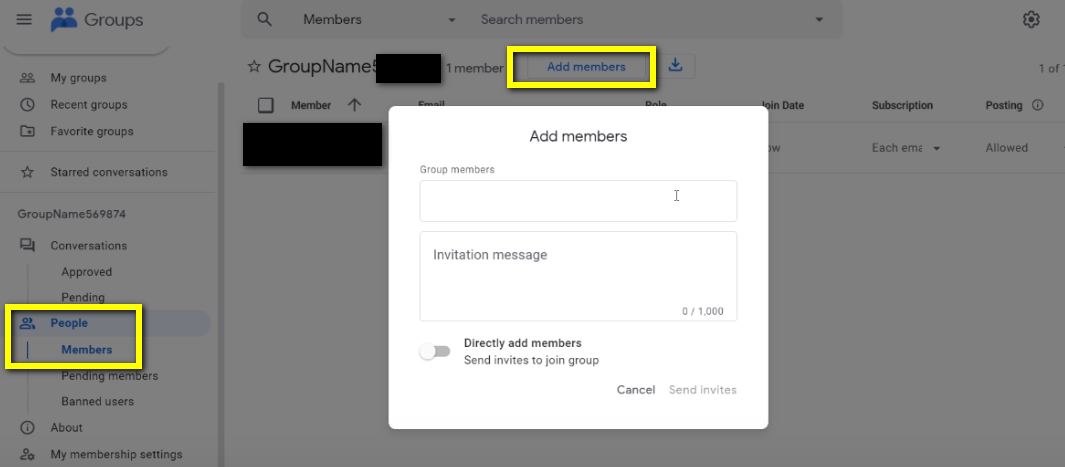
Adjust permissions
Go to Group Settings to modify who can post, view members, or join.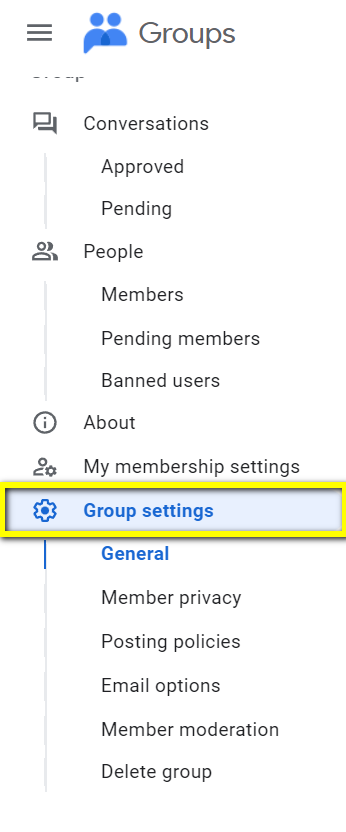
Allow external members
If you need to add people outside your organization, enable this in Group Settings: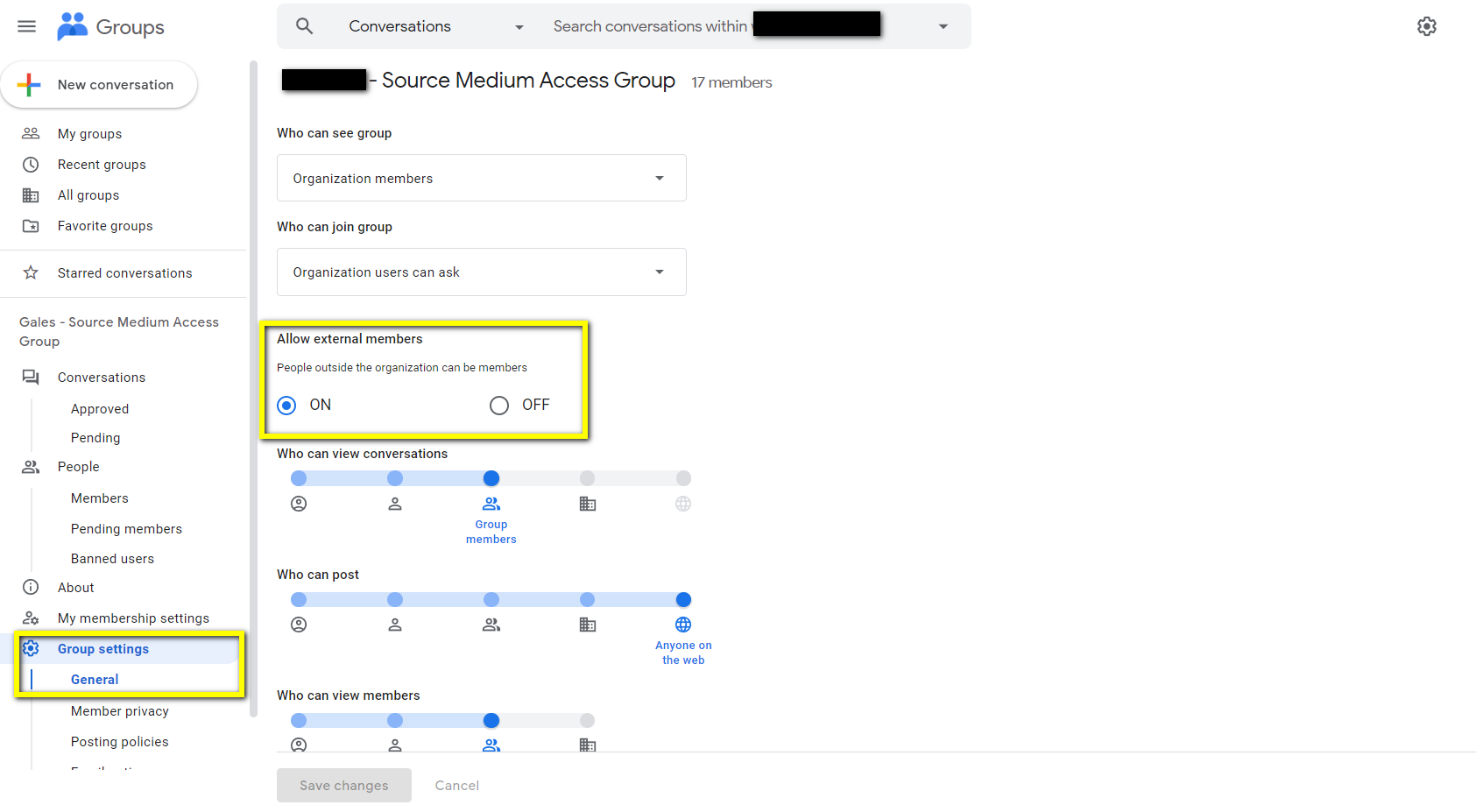
Sharing Resources with Your Group
Once your group exists, use the group email to grant access across Google products.Looker Studio Dashboards
- Open your dashboard and click Share (top right)
- Enter the group email address
- Choose permission level:
- Viewer: Can view and interact with filters
- Editor: Can modify the dashboard
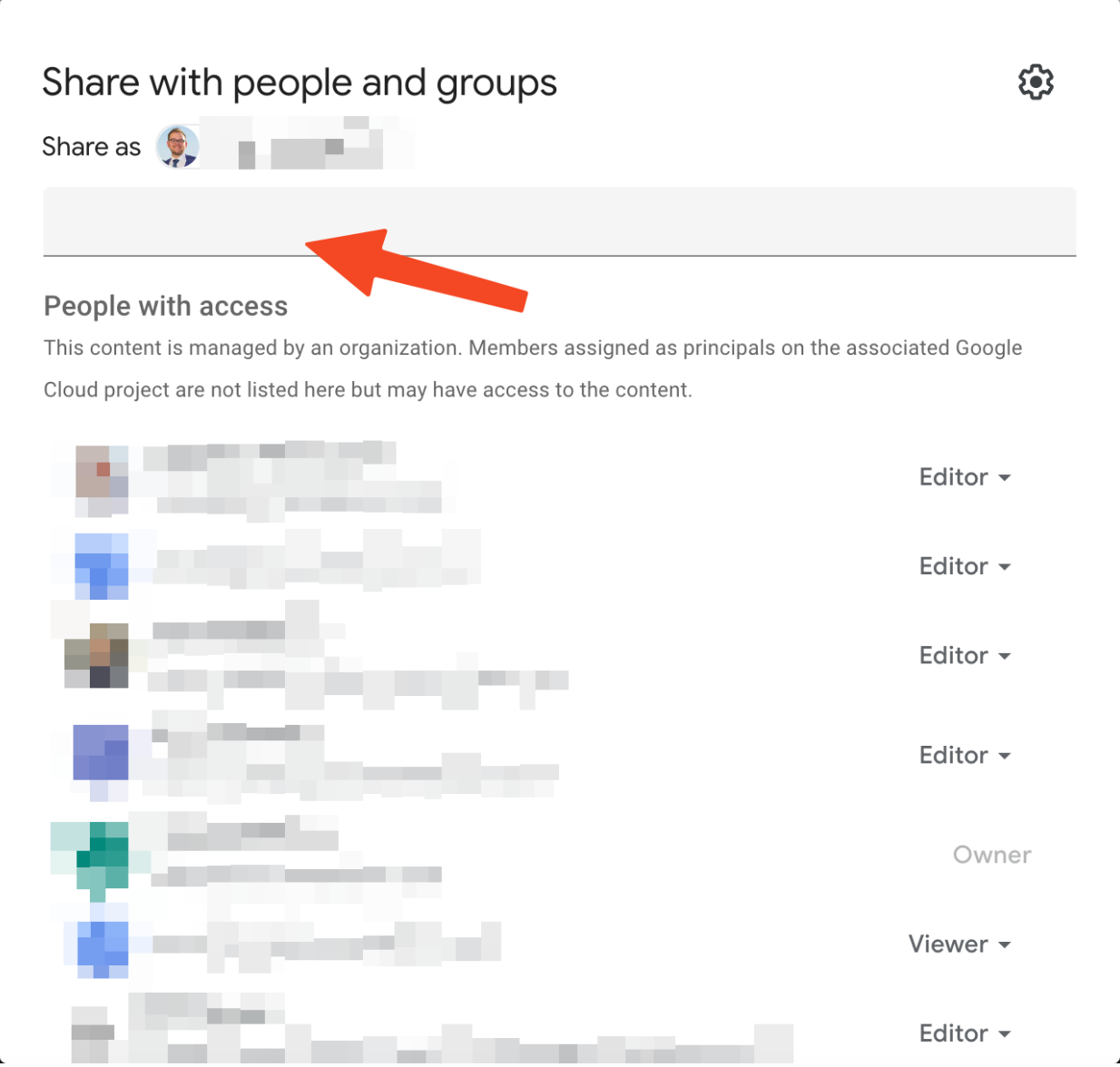
Google Sheets (Config Sheets)
- Open the sheet and click Share
- Enter the group email
- Choose permission level:
- Viewer: Read-only
- Commenter: Can add comments
- Editor: Can modify content
BigQuery Datasets
For BigQuery access, your SourceMedium team will configure IAM permissions using your group email. Contact support if you need to grant BigQuery access to additional team members.Recommended Group Structure
For most teams, we recommend two groups:| Group | Purpose | Typical Access |
|---|---|---|
company-sm-viewers | Day-to-day dashboard users | Dashboard: Viewer, Sheets: Viewer |
company-sm-admins | Analytics leads, data team | Dashboard: Editor, Sheets: Editor, BigQuery: Query |
Troubleshooting
”You don’t have access” error
Check group membership
Check group membership
Verify the user is actually in the group at groups.google.com.
Wait for propagation
Wait for propagation
Permission changes can take time to propagate across Google services. If you just added someone to the group or shared a resource, have the user sign out and back in, then try again.
Check the correct email
Check the correct email
Ensure the resource was shared with the group email (e.g.,
[email protected]), not an individual.External domain restrictions
External domain restrictions
If adding external users, ensure “Allow members outside your organization” is enabled in Group Settings.